Hi Patty,
I'm sorry to see Blue so high again this morning.

Is there somewhere to save information that is in threads so you can refer back?
The best place to keep brief notes of behavioural observations and clincal signs is in the spreadsheet remarks because the BG levels can provide context (and vice versa).
If you want to keep useful info from threads (larger sections of text) in one place, then I'd suggest setting up a 'scrapbook' document in Google Drive:
1. At the top of Blue's spreadsheet, click on
File.
2. From the dropdown menu select
New.
3. From the second dropdown menu select
Document.
This will open a new WP document for you. From then on you can copy/paste helpful posts and links from Blue's threads into the document and it will be all in one place, easy to search, and available across all your devices. (Note: To edit the document on a tablet you need to be signed in to Google Drive and also need to download the Google Docs app, and I assume similar would apply on a smartphone.)
Suggestion - Using the Document Outline function to make things easier to find:
The Document Outline function easily creates a 'table of contents' for the document. Here's how:
1. To turn on the document outline display (laptop/desktop), click on the following icon to the left of the document page:
Note: To display the document outline on a tablet you need to click the menu icon (3 vertical dots) at the top right of the device display and then select it from the menu. The screen will split to show the document text (upper window) and the document outline (lower window).
2. Before you copy/paste a new section of text into the scrapbook document, type a heading that describes the content of the post you're copying, e.g:
Feeding / Steering Plan for Blue
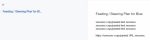
3. Copy/paste the text from the FDMB thread into the scrapbook document. It's also helpful to copy/paste the URL for the thread itself so that you can quickly open it and revisit the full conversation if required, e.g:
Feeding / Steering Plan for Blue
xxxxxxxx copy/pasted text xxxxxxxx
xxxxxxxx copy/pasted text xxxxxxxx
xxxxxxxx copy/pasted text xxxxxxxx
https://xxxxxxxx copy/pasted URL xxxxxxxx
4. Next, click the cursor anywhere on your heading text.
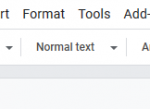
5. To the left of the formatting toolbar at the top of the document you'll see the Paragraph Style option. (Need to have tablet in landscape orientation.)
Click on
Normal Text and then from the dropdown menu select
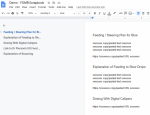
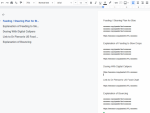
Heading 3. This will automatically add the heading description to the document outline. You should see the heading appear in the list to the left of the page, e.g:
(NB: On a tablet, the headings appear in the Outline window in the lower part of the screen.)
6. As you add more items and headings to the scrapbook the document outline will automatically update to include a list of all your topics. To jump to a particular topic, just click on the heading name in the document outline list and you'll automatically be taken to the section you're interested in.
7. You can also click on the
Edit menu then select
Find and Replace from the dropdown list to search for particular text in the document. (Keyboard shortcut for the Find function on PC is CTRL-F.) These functions also work in Google spreadsheets.
Mogs
.